

Google Analytics will need some small configuration changes. The key change is the additional of a Custom Dimension (or more if you need them). The Custom Dimension will be used to hold the unique identifier for each visitor to the Web Site.
Custom Dimensions
To create a Custom Definition, select the ADMIN menu option and then navigate the menu to select “Custom Definitions” under the “Property” section.

Selecting the “Custom Dimensions” option within the “Custom Definitions” will provide the option to create a new Custom Dimension.

On selecting the “New Custom Dimension” button, a form will be displayed, which can be completed as follows:

Save the Custom Dimension. You’ll notice that Google has provided on the right, examples of using the Custom Dimension. A Custom Dimension is not referenced using the Name provided when it is created, but rather an index number that starts at 1 and is incremented for each new Custom Dimension that is created. This is important because you need to make sure you are referencing the correct Custom Dimension throughout this solution. In this example, the Custom Dimension is 1.

The index value for each Custom Dimension is displayed in the table under “Index” as shown above.
User Management
A user will need to be created that represents the Service Account. The Service Account is the User that Salesforce will use to access Google Analytics. It is configured in the Google API Console, but also needs to be created within Google Analytics.
To create the Google Analytics user, select “User Management” from the “ADMIN” menu.
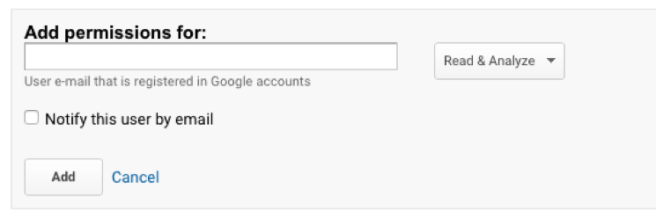
Enter the e-mail address for the Service Account that you want to use. This is the e-mail that was created for you when you configure a Service Account within the Google API Console.

 salesforceHarding