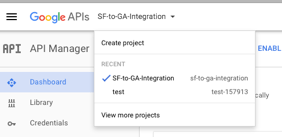
The first thing we need to do is open up API access to Google Analytics. This is achieved using the Google API Console. We need to create a “Project” within the Google
API Console, which is achieved by selecting “Create Project” from the drop down menu at the top of the page (and possibly other means depending if this is your first project or not).
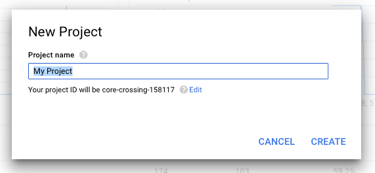
On selecting “Create Project”, you will need to provide a name for the project in the pop-up that is displayed:
Selecting the “Create” option, Google API Console will drop you into a page that lists all the Google APIs that can have access granted as follows:
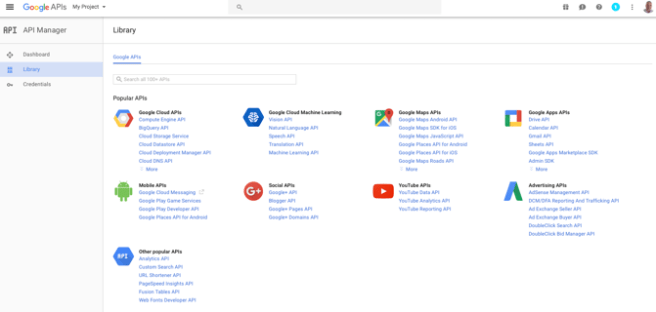
Although it may be tempting to select the “Analytics API” option under the “Other popular APIs” section, that is not the correct API. In fact, the correct API is not in the list (or was not at the time of writing). To add the correct API to your Google API Console, follow this link
As you have already created a “Project” in the Google API Console, you should see the “Google Analytics Reporting API” added as an available API once you have followed the prompts.
Create a Service Account Key and Service Account by selecting the “Create credentials” button.
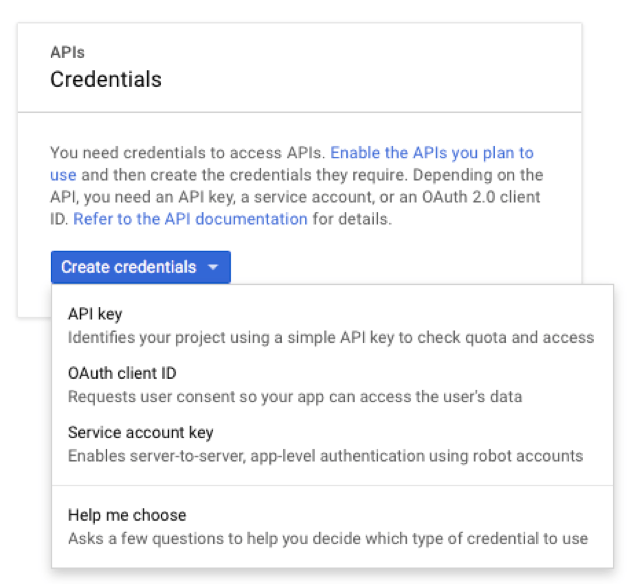
Select the “Service account key” option and you will be presented with a new form to complete.
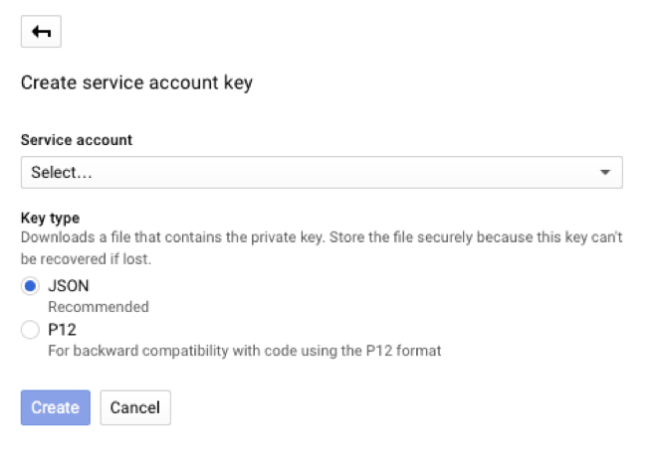
As there will be no existing Service account to associate a key with, you will need to select “New service account” from the “Service account” drop-down list. This will present you with a few additional fields to complete.
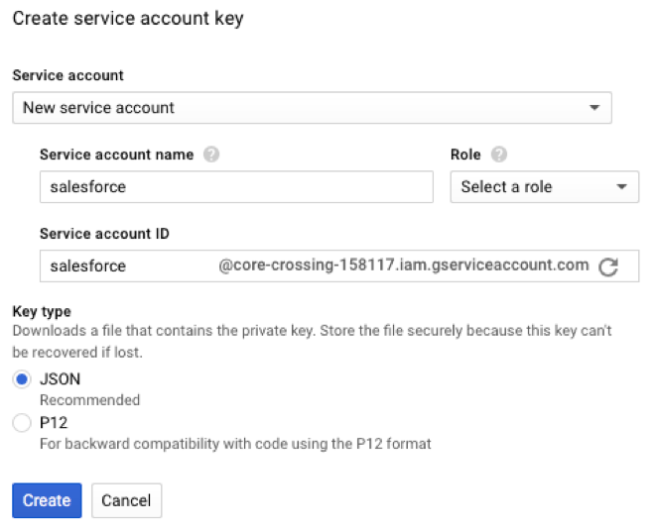
Enter a “Service account name” and select a the appropriate Role for the Service Account. You will notice that the Service account ID is created for you based on the Service account name entered. You will need to remember this ID as it will be used later on.
As we are going to use JSON to communicate with Google Analytics, select the JSON key type. Select “Create” when you are ready and the Key will be generated for you and the service account created. Keep the key safe, as it cannot be re-downloaded and you’ll have to create another if you lose it.
The JSON key will look something like:
{
   "type": "service_account",
   "project_id": "core-crossing-158117",
   "private_key_id": "9ab9d00b10ce42005822dbf871b5f3e026611120",
   "private_key": "-----BEGIN PRIVATE KEY-----\nMIIEvQIBADANBgkqh etc. ----END PRIVATE KEY-----\n",
   "client_email": "salesforce@core-crossing-158117.iam.gserviceaccount.com",
   "client_id": "109773372387319802910",
   "auth_uri": "https://accounts.google.com/o/oauth2/auth",
   "token_uri": "https://accounts.google.com/o/oauth2/token",
   "auth_provider_x509_cert_url": "https://www.googleapis.com/oauth2/v1/certs",
   "client_x509_cert_url": "https://www.googleapis.com/robot/v1/metadata/x509/salesforce%40core-crossing-158117.iam.gserviceaccount.com"
 }
The important part of this file is the value for the “private_key”, you will need this to authenticate later on. However, there is a small amount of work to do on this key before it can be used. You will need to copy this key value to a new file. The key will look something like this:
-----BEGIN PRIVATE KEY-----\nMIIEvQIBADANBgkqhkiG9w0BAQEFAASCBKcwggSjAgEAAoIBAQCUEBWZw2uRH4Nd\n0QJPJ92AU1bz11MqZhbzOkbBsOyGZxKm8nvq068jaUaE/Rird7EbfrYceQ5WnWad\nAaW1p1DIvETVFUC5b57EBQC7guAyV5Jrk1AOiX0Md5Vxsa+sVfJ7V0f/X6KmFBY+\nVuGfa9IV1PaCm7zgiRFkEx7kMtPVnCv5ViMCX+8kI7yIgfATn4K0q2euJy6YJ14q\nKK8PxphlBUoANkhf9uU3pLQP8TAQNnyqyWKhYqNWNAX2Q7x8s6Xe8nm6j+P/gS+Q\nxemAReDigJ6DPy+k0wraRShALGVkXLWKzzrCZkf6r8Ll3deD1cX6evTfmmrmc2rZ\nQ1CVqyQZAgMBAAECggEAC+kfU7c8t/fpAWsG3IeAckpB/Gud7RM5VWeiuYIaBNXV\n0kg/X6yXsimN2rThfympvaR70d6LILyYvJidU/eZsAw1HU8QXdp00x/z5yGoF2Sk\nCrNBBVRaEt6rzvGUSDDByNpEmG6BDwsenvUuQTzTMZ5oFimhEA72mpZPLdxI3i4K\nqFputcM2ZAf3jDJYSok5Sxv30D2+Q7dNnqHz/hNFHMYIRNu5cm5J9FzkSJCzcFYv\nSj+Qi2Sza4BJNqtZpTgTCay5JKritPwLJriK9jLTG74NAxIemNhsmqYB80slDB8D\n3VLNHwvI70h2vUfp/r0GLhxmBSuQ10dGGZCjJbQi4QKBgQDErBFlpCnIp0dC8Rrb\npjKxHZNkUxtEN7LeqzKPCZxAlt7J6tlJ4cxTYewI0Ecj2Wd1G5+G8lTn9hjtQDNu\nJ2/gf3bTklEo0i/PEuqerM8JIczeZgzCrpb5XQvSt7ICPD9gdD6kjuJ90rmqwiqW\neb5NVlk86BEeDP7BH+4eExWS7wKBgQDAui5BDIo+/3d
 C9ypCznfl9/SFSa8k9uj5\nL7wdsSB5/QCS+l13Ad6bB4BPTi8Y+67OC4dX2YfEsFaxCocpZqmJds16lNH9nHrv\ns6yYMTE+YLHFf4V6BpkJLqBxcIi+e3ATnW2BhdNtKdXykVA645JgS2+Zlx6ReFVT\nDhR7n12ZdwKBgGhITJk2aKlqeVC3g2RARdTAN+0UW/raBdAnupE5qU5eMRejnT+d\nqLf1zjAGMBKELmVcFkR5rieoyCLUzfB0nM/PBnS8uqgIey0zfJBSVR0kfPrX5aA8\n7vSeL6y1ln+07m34dVbQJKxO1gADII3VU+CyDnNLIfhrL5G7moj72Y6lAoGBAIi+\nkTsOTrjMQi59eLrWDDRbbl90HJU5q6vCttLKbqSfYtzmT5K0/OE6vUuHydsMGMeR\nXoJykeZ4x8nuEmDJutkSNlEXbrdnY8LX1UpW/P2pVfkvteES9VqSfrx+gEfHBYql\nVKFl9tGpsWfeuvJNrfotDA4KL2I/4yp+/wGH3b2ZAoGAdpgr9U43APpOyYXVv9uo\n9UOby/rhhRkyKSuWOGg2vuG3sg1L/bgpQmqgBapxmUzXYKYt1qhj4OnYARxAV2mM\nCnB2cSRhjVd6zf0MjW7g2r6NcK1T1BHOVDs/0IVpnWmrnX2nMJIhjIYIYdrmYH28\nFcdUU60PZ+ZJKEfVx+cFFJE=\n-----END PRIVATE KEY-----\n
Next, you will need to clean up the key by:
- Removing —–BEGIN PRIVATE KEY—– from the beginning
- Removing —–END PRIVATE KEY—–from the end
- Removing ALL instanced of \n from the key
Your key should now look something like this:
MIIEvQIBADANBgkqhkiG9w0BAQEFAASCBKcwggSjAgEAAoIBAQCUEBWZw2uRH4Nd0QJPJ92AU1bz11MqZhbzOkbBsOyGZxKm8nvq068jaUaE/Rird7EbfrYceQ5WnWadAaW1p1DIvETVFUC5b57EBQC7guAyV5Jrk1AOiX0Md5Vxsa+sVfJ7V0f/X6KmFBY+VuGfa9IV1PaCm7zgiRFkEx7kMtPVnCv5ViMCX+8kI7yIgfATn4K0q2euJy6YJ14qKK8PxphlBUoANkhf9uU3pLQP8TAQNnyqyWKhYqNWNAX2Q7x8s6Xe8nm6j+P/gS+QxemAReDigJ6DPy+k0wraRShALGVkXLWKzzrCZkf6r8Ll3deD1cX6evTfmmrmc2rZQ1CVqyQZAgMBAAECggEAC+kfU7c8t/fpAWsG3IeAckpB/Gud7RM5VWeiuYIaBNXV0kg/X6yXsimN2rThfympvaR70d6LILyYvJidU/eZsAw1HU8QXdp00x/z5yGoF2SkCrNBBVRaEt6rzvGUSDDByNpEmG6BDwsenvUuQTzTMZ5oFimhEA72mpZPLdxI3i4KqFputcM2ZAf3jDJYSok5Sxv30D2+Q7dNnqHz/hNFHMYIRNu5cm5J9FzkSJCzcFYvSj+Qi2Sza4BJNqtZpTgTCay5JKritPwLJriK9jLTG74NAxIemNhsmqYB80slDB8D3VLNHwvI70h2vUfp/r0GLhxmBSuQ10dGGZCjJbQi4QKBgQDErBFlpCnIp0dC8RrbpjKxHZNkUxtEN7LeqzKPCZxAlt7J6tlJ4cxTYewI0Ecj2Wd1G5+G8lTn9hjtQDNuJ2/gf3bTklEo0i/PEuqerM8JIczeZgzCrpb5XQvSt7ICPD9gdD6kjuJ90rmqwiqWeb5NVlk86BEeDP7BH+4eExWS7wKBgQDAui5BDIo+/3d
 C9ypCznfl9/SFSa8k9uj5L7wdsSB5/QCS+l13Ad6bB4BPTi8Y+67OC4dX2YfEsFaxCocpZqmJds16lNH9nHrvs6yYMTE+YLHFf4V6BpkJLqBxcIi+e3ATnW2BhdNtKdXykVA645JgS2+Zlx6ReFVTDhR7n12ZdwKBgGhITJk2aKlqeVC3g2RARdTAN+0UW/raBdAnupE5qU5eMRejnT+dqLf1zjAGMBKELmVcFkR5rieoyCLUzfB0nM/PBnS8uqgIey0zfJBSVR0kfPrX5aA87vSeL6y1ln+07m34dVbQJKxO1gADII3VU+CyDnNLIfhrL5G7moj72Y6lAoGBAIi+kTsOTrjMQi59eLrWDDRbbl90HJU5q6vCttLKbqSfYtzmT5K0/OE6vUuHydsMGMeRXoJykeZ4x8nuEmDJutkSNlEXbrdnY8LX1UpW/P2pVfkvteES9VqSfrx+gEfHBYqlVKFl9tGpsWfeuvJNrfotDA4KL2I/4yp+/wGH3b2ZAoGAdpgr9U43APpOyYXVv9uo9UOby/rhhRkyKSuWOGg2vuG3sg1L/bgpQmqgBapxmUzXYKYt1qhj4OnYARxAV2mMCnB2cSRhjVd6zf0MjW7g2r6NcK1T1BHOVDs/0IVpnWmrnX2nMJIhjIYIYdrmYH28FcdUU60PZ+ZJKEfVx+cFFJE=
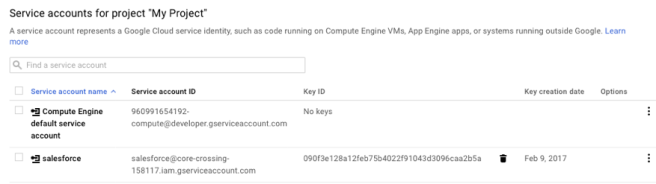
This is exactly what we need to use going forward, so store this in a safe place. Your Google API Console should now show you a Service Account something like the following: